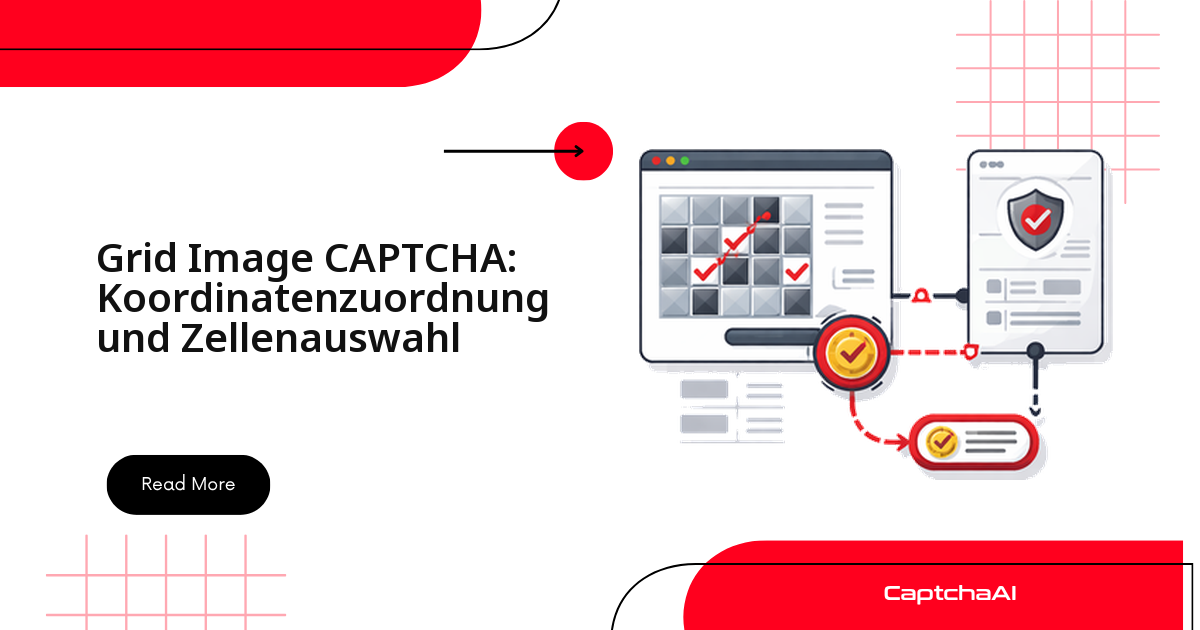
CaptchaAI liefert für ein Rasterbild-CAPTCHA eine Liste von Zellindizes wie [1, 3, 6, 9] – die eigentliche Arbeit beginnt danach: Sie müssen diese Nummern in Pixelkoordinaten übersetzen und die passenden Kacheln im Browser anklicken. Genau an dieser Zuordnung von Zellindex zu Klickposition scheitern die meisten Selenium- und Puppeteer-Skripte.
Dieser Leitfaden zeigt den vollständigen Ablauf: das 3×3- oder 4×4-Raster erfassen, die Anweisung auslesen, das Bild an CaptchaAI übermitteln und die zurückgegebenen Indizes präzise auf die richtigen Zellen abbilden. Alle Beispiele nutzen reCAPTCHA-v2-Bildabfragen; das Prinzip gilt aber für jedes gerasterte Bild-CAPTCHA.
Warum die Zellnummerierung dem Leseverlauf folgt
Rasterbild-CAPTCHAs kommen in zwei Standardgrößen: als 3×3- oder als 4×4-Raster. Die Zellen sind immer in Lesereihenfolge nummeriert – von links nach rechts und von oben nach unten:
3×3 Grid:          4×4 Grid:
1  2  3            1   2   3   4
4  5  6            5   6   7   8
7  8  9            9  10  11  12
                   13  14  15  16
Diese feste Reihenfolge ist die Grundlage der gesamten Koordinatenberechnung: Index 1 liegt oben links, Index 9 (beziehungsweise 16) unten rechts. Für ein 3×3-Raster ergibt die spätere Umrechnung diese Zuordnung von Index zu Zeile und Spalte:
| Zellindex | Zeile | Spalte | Position |
|---|---|---|---|
| 1 | 0 | 0 | oben links |
| 5 | 1 | 1 | Mitte |
| 7 | 2 | 0 | unten links |
| 9 | 2 | 2 | unten rechts |
Verwechseln Sie die Rastergröße nicht – ein als 3×3 behandeltes 4×4-Raster verschiebt jede einzelne Klickposition.
Schritt 1: Rasterbild und Anweisung auslesen
Aus der CAPTCHA-Abfrage brauchen Sie zwei Dinge: das Rasterbild selbst und den Anweisungstext (etwa „Alle Bilder mit Ampeln auswählen“). Bei reCAPTCHA v2 liegt beides in einem verschachtelten iframe – dem Challenge-iframe, der üblicherweise als letztes geladen wird.
Python mit Selenium
import base64
from selenium import webdriver
from selenium.webdriver.common.by import By
from selenium.webdriver.support.ui import WebDriverWait
from selenium.webdriver.support import expected_conditions as EC

driver = webdriver.Chrome()
driver.get("https://example.com/form")

# Wait for reCAPTCHA iframe
WebDriverWait(driver, 10).until(
    EC.presence_of_element_located((By.CSS_SELECTOR, "iframe[src*='recaptcha']"))
)

# Switch to challenge iframe
iframes = driver.find_elements(By.CSS_SELECTOR, "iframe[src*='recaptcha']")
challenge_iframe = iframes[-1]  # Challenge iframe is typically the last one
driver.switch_to.frame(challenge_iframe)

# Get the grid image
grid_img = driver.find_element(By.CSS_SELECTOR, "img.rc-image-tile-33, img.rc-image-tile-44")
img_src = grid_img.get_attribute("src")

# Get instruction text
instruction = driver.find_element(
    By.CSS_SELECTOR, ".rc-imageselect-desc-wrapper"
).text
print(f"Instruction: {instruction}")

# Screenshot the grid as base64
img_b64 = grid_img.screenshot_as_base64

# Determine grid size
classes = grid_img.get_attribute("class")
grid_size = "4x4" if "44" in classes else "3x3"
print(f"Grid size: {grid_size}")

driver.switch_to.default_content()
JavaScript mit Puppeteer
const puppeteer = require('puppeteer');
const fs = require('fs');

const browser = await puppeteer.launch({ headless: false });
const page = await browser.newPage();
await page.goto('https://example.com/form');

// Find the challenge iframe
const frames = page.frames();
const challengeFrame = frames.find(f => f.url().includes('recaptcha'));

// Get instruction
const instruction = await challengeFrame.$eval(
  '.rc-imageselect-desc-wrapper',
  el => el.textContent.trim()
);

// Screenshot the grid image
const gridImg = await challengeFrame.$('img.rc-image-tile-33, img.rc-image-tile-44');
const imgBuffer = await gridImg.screenshot();
const imgBase64 = imgBuffer.toString('base64');

// Determine grid size
const className = await challengeFrame.$eval(
  'img.rc-image-tile-33, img.rc-image-tile-44',
  el => el.className
);
const gridSize = className.includes('44') ? '4x4' : '3x3';
console.log(`Grid: ${gridSize}, Instruction: ${instruction}`);
Der Klassenname der Bildkachel (rc-image-tile-33 oder rc-image-tile-44) verrät die Rastergröße. Merken Sie sich diesen Wert – Sie brauchen ihn in Schritt 2 und in der Koordinatenberechnung.
Schritt 2: Raster an CaptchaAI übermitteln
Übermitteln Sie das Rasterbild als Datei an den Endpunkt in.php und geben Sie grid_size, img_type sowie das aus der Anweisung extrahierte Schlüsselwort (etwa „traffic lights“) mit. Anschließend fragen Sie das Ergebnis über res.php ab, bis der Status 1 zurückkommt – klassisches Polling mit kurzer Wartezeit zwischen den Versuchen.
import requests
import time
import json

API_KEY = "YOUR_API_KEY"

# Parse the instruction to a simple keyword
# "Select all images with traffic lights" → "traffic lights"
import re
keyword_match = re.search(r'(?:with|of|containing)\s+(.+?)\.?$', instruction, re.I)
keyword = keyword_match.group(1) if keyword_match else instruction

# Submit
with open("/tmp/grid.png", "wb") as f:
    f.write(base64.b64decode(img_b64))

with open("/tmp/grid.png", "rb") as f:
    resp = requests.post("https://ocr.captchaai.com/in.php",
        files={"file": f},
        data={
            "key": API_KEY,
            "method": "post",
            "grid_size": grid_size,
            "img_type": "recaptcha",
            "instructions": keyword,
            "json": "1",
        }
    ).json()

if resp["status"] != 1:
    raise Exception(f"Submit error: {resp['request']}")

task_id = resp["request"]

# Poll
for _ in range(20):
    time.sleep(5)
    result = requests.get("https://ocr.captchaai.com/res.php", params={
        "key": API_KEY, "action": "get", "id": task_id, "json": "1"
    }).json()

    if result["status"] == 1:
        cells = json.loads(result["request"])
        print(f"Cells to click: {cells}")  # e.g., [1, 3, 6, 9]
        break
    if result["request"] != "CAPCHA_NOT_READY":
        raise Exception(f"Error: {result['request']}")
CaptchaAI antwortet mit einem JSON-Array der anzuklickenden Zellindizes, zum Beispiel [1, 3, 6, 9]. Grid Image gehört zu den generell verfügbaren CAPTCHA-Typen; abgerechnet wird Thread-basiert, nicht pro Lösung – dazu weiter unten mehr.
Schritt 3: Zellindizes in Klickkoordinaten umrechnen
Jetzt kommt der Kern: die Umrechnung eines 1-basierten Zellindex in die Pixelmitte der zugehörigen Kachel. Die Formel ist einfach, sobald Sie zwischen 1-basiertem Index (von CaptchaAI) und 0-basierter Zeilen-/Spaltenlogik (in Ihrem Code) übersetzen:
- Spalte = (Index − 1) mod Spaltenzahl
- Zeile = (Index − 1) ganzzahlig geteilt durch Spaltenzahl
Als Klickpunkt dient bewusst die Zellmitte und nicht die obere linke Ecke – so fallen kleine Rundungsfehler nicht auf die Nachbarzelle.
def cell_to_coordinates(cell_index, grid_size, grid_width, grid_height):
    """Convert a 1-based cell index to (x, y) center coordinates."""
    if grid_size == "3x3":
        cols, rows = 3, 3
    else:
        cols, rows = 4, 4

    cell_w = grid_width / cols
    cell_h = grid_height / rows

    # Convert 1-based index to 0-based row/col
    idx = cell_index - 1
    col = idx % cols
    row = idx // cols

    # Center of the cell
    x = col * cell_w + cell_w / 2
    y = row * cell_h + cell_h / 2

    return int(x), int(y)

# Example: grid is 300×300
for cell in cells:
    x, y = cell_to_coordinates(cell, grid_size, 300, 300)
    print(f"Cell {cell} → ({x}, {y})")
Für ein 300×300 Pixel großes 3×3-Raster ergeben sich saubere Mittelpunkte im Abstand von 100 Pixeln:
Cell 1 → (50, 50)
Cell 3 → (250, 50)
Cell 6 → (250, 150)
Cell 9 → (250, 250)
Tipp: Messen Sie Breite und Höhe des Rasters immer zur Laufzeit am
.rc-imageselect-target-Element, statt eine feste Bildgröße anzunehmen – reCAPTCHA skaliert das Raster je nach Viewport und Bildschirmauflösung.
Schritt 4: Zellen anklicken und Abfrage bestätigen
Mit den Koordinaten klicken Sie die Kacheln an und lösen anschließend die Prüfung aus. In Selenium rechnen ActionChains relativ zur Elementmitte – deshalb ziehen Sie die halbe Rasterbreite beziehungsweise -höhe wieder ab. Puppeteer bietet den bequemeren Weg über die Tabellenstruktur des Rasters: Hier sprechen Sie Zeile und Spalte direkt an.
Selenium
from selenium.webdriver.common.action_chains import ActionChains

driver.switch_to.frame(challenge_iframe)

# Get grid element position and size
grid_el = driver.find_element(By.CSS_SELECTOR, ".rc-imageselect-target")
grid_rect = grid_el.rect
grid_w = grid_rect["width"]
grid_h = grid_rect["height"]

actions = ActionChains(driver)

for cell in cells:
    x, y = cell_to_coordinates(cell, grid_size, grid_w, grid_h)
    # Click relative to grid element's top-left corner
    actions.move_to_element_with_offset(
        grid_el,
        x - grid_w / 2,  # offset from center
        y - grid_h / 2
    ).click()

actions.perform()

# Click verify
verify_btn = driver.find_element(By.ID, "recaptcha-verify-button")
verify_btn.click()

driver.switch_to.default_content()
Puppeteer
// Click each cell by index
const tableRows = await challengeFrame.$$('table.rc-imageselect-table tr');
for (const cellIdx of cells) {
  const row = Math.floor((cellIdx - 1) / (gridSize === '4x4' ? 4 : 3));
  const col = (cellIdx - 1) % (gridSize === '4x4' ? 4 : 3);
  const cell = (await tableRows[row].$$('td'))[col];
  await cell.click();
  await new Promise(r => setTimeout(r, 200));
}

await challengeFrame.click('#recaptcha-verify-button');
Häufige Fehler und ihre Ursachen
Die meisten Fehlklicks lassen sich auf eine Handvoll Ursachen zurückführen. Prüfen Sie diese Punkte, bevor Sie tiefer graben:
| Symptom | Ursache | Lösung |
|---|---|---|
| Falsche Zellen zurückgegeben | Falsches grid_size |
Prüfen Sie am Kachel-Klassennamen, ob das Raster 3×3 oder 4×4 ist |
| Klicks verfehlen die Zellen | Koordinatenversatz falsch | Rasterabmessungen erneut direkt vom Element lesen |
ERROR_WRONG_FILE_EXTENSION |
Ungeeignetes Bildformat | PNG oder JPEG verwenden |
| Nach dem Klick erscheinen neue Kacheln | Dynamisches Raster | Nach jeder Runde neu lösen (siehe unten) |
Dynamische Kacheln zuverlässig behandeln
Manche reCAPTCHA-v2-Raster tauschen angeklickte Kacheln gegen neue Bilder aus, statt die Abfrage sofort abzuschließen. Fangen Sie das mit einer Wiederholungsschleife ab: Nach jeder Runde das Raster neu erfassen, erneut an CaptchaAI schicken und wieder klicken – so lange, bis der Challenge-iframe verschwindet oder ein Maximum an Runden erreicht ist.
def solve_with_dynamic_tiles(driver, api_key, max_rounds=3):
    for round_num in range(max_rounds):
        driver.switch_to.frame(challenge_iframe)

        # Re-capture grid and instruction
        img_b64 = driver.find_element(
            By.CSS_SELECTOR, "img.rc-image-tile-33"
        ).screenshot_as_base64

        # Submit and get cells (same as above)
        cells = submit_and_poll(api_key, img_b64, "3x3", keyword)

        if not cells:
            break

        # Click cells
        click_cells(driver, cells, "3x3")

        # Click verify
        driver.find_element(By.ID, "recaptcha-verify-button").click()

        driver.switch_to.default_content()
        time.sleep(2)

        # Check if solved (no more challenge iframe)
        try:
            driver.switch_to.frame(challenge_iframe)
            driver.switch_to.default_content()
        except Exception:
            return True  # Solved

    return False
Preise: Thread-basiert statt pro Lösung
Rasterbild-CAPTCHAs erfordern Bilderkennung und damit mehr Rechenaufwand als reine Token-Lösungen – bei CaptchaAI schlägt sich das aber nicht im Preis nieder. Abgerechnet wird pro gleichzeitigem Thread, nicht pro gelöstem CAPTCHA. Ein Thread ist ein in Bearbeitung befindliches CAPTCHA; sobald es gelöst ist, nimmt derselbe Thread das nächste an. Jeder Tarif enthält unbegrenzte Lösungen pro Thread, ohne Tageslimit und ohne Aufschlag nach CAPTCHA-Typ.
Für einen einzelnen Scraper genügt BASIC (15 $/Monat, 5 Threads); wer viele Raster parallel abarbeitet, skaliert über ADVANCE (90 $/Monat, 50 Threads) oder höher. Betreiben Sie Ihre Worker etwa auf Hetzner oder netcup, bestimmt die Thread-Zahl, wie viele Browser-Sessions Sie gleichzeitig durch die Bildabfrage schleusen können. Die aktuellen Preise stehen auf captchaai.com (Beträge in US-Dollar).
Häufige Fragen
Wie rechne ich Zellindex 7 in Zeile und Spalte um?
Zeile = (7 − 1) ganzzahlig geteilt durch die Spaltenzahl, Spalte = (7 − 1) mod Spaltenzahl. In einem 3×3-Raster ist Index 7 also Zeile 2, Spalte 0 – die erste Kachel der untersten Reihe.
Warum treffen meine Klicks trotzdem die falschen Zellen?
Fast immer stimmt die angenommene Rastergröße nicht mit der echten überein, oder die gemessenen Rasterabmessungen sind veraltet. Prüfen Sie den Kachel-Klassennamen (-33 gegenüber -44) und lesen Sie Breite und Höhe direkt vom .rc-imageselect-target-Element aus.
Muss ich das Bild vor dem Übermitteln zuschneiden oder skalieren?
Nein. Senden Sie das Original-Rasterbild ohne Zuschneiden oder Komprimieren – jede Veränderung verschiebt die Zellgrenzen und senkt die Trefferquote.
Lassen sich Rasterbild-CAPTCHAs auch ohne Browser lösen?
Ja. Wenn das Rasterbild bereits als Datei oder base64 vorliegt – etwa aus einem HTTP-Client statt aus Selenium –, übermitteln Sie es direkt an in.php. Der Browser wird nur zum Anklicken der Kacheln gebraucht, nicht zum Lösen selbst.
Ist das automatische Lösen von CAPTCHAs in der DACH-Region zulässig?
Das hängt vom Einsatzzweck ab. Automatisieren Sie nur eigene oder ausdrücklich genehmigte Systeme und prüfen Sie bei Scraping-Projekten Ihre Rechtsgrundlage nach DSGVO – IP-Adressen gelten als personenbezogene Daten. CaptchaAI löst die technische Abfrage; die rechtliche Bewertung Ihres Workflows bleibt Ihre Aufgabe.
Rasterbild-CAPTCHAs mit CaptchaAI lösen
Die Zuordnung von Zellindex zu Klickkoordinate ist reine Arithmetik – sobald Rastergröße und Elementabmessungen stimmen, sitzt jeder Klick. Holen Sie sich Ihren API-Schlüssel unter captchaai.com und lösen Sie Ihr erstes Rasterbild-CAPTCHA.